


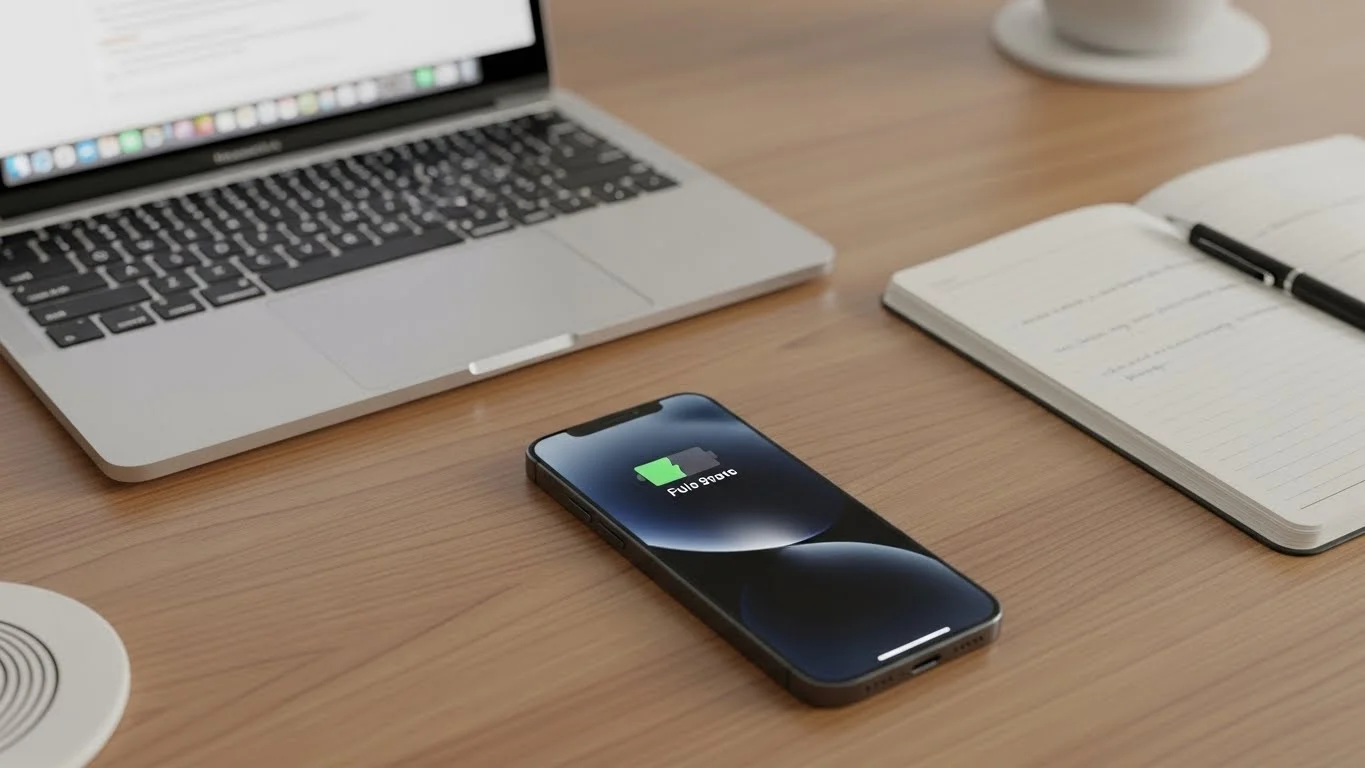
Battery drain is a common problem for smartphone users. It can lead to frustration and inconvenience. iPhone 15 users have reported specific battery drain issues. These include rapid battery depletion and unexpected shutdowns. Addressing battery drain is crucial for device longevity. A well-functioning battery enhances user experience and device performance.

Common Causes of Battery Drain on iPhone 15
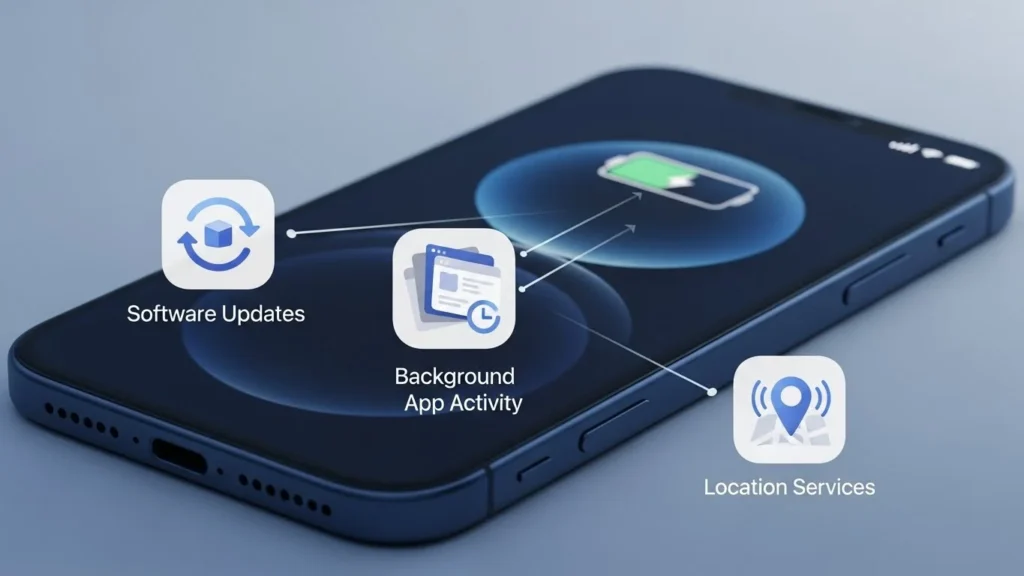
Several factors contribute to battery drain on the iPhone 15. Understanding these causes can help users implement effective solutions.
Software Updates and Bugs
Software updates can significantly impact battery life. New iOS versions may introduce bugs that affect battery performance. Users have reported issues with specific iOS updates causing excessive battery drain. Regularly updating to the latest version can help mitigate these problems.
Background App Activity
Apps running in the background can drain battery life. Some applications are known for high battery usage, such as social media and streaming apps. Users should monitor app activity and close unnecessary applications to conserve battery.
Location Services and Connectivity
GPS and connectivity features can heavily impact battery life. Constant location tracking drains the battery faster. Users can manage location services by adjusting settings to only allow access when necessary. Disabling unused connectivity features can also help improve battery performance.
Effective Solutions to Fix Battery Drain
Experiencing battery drain issues on your iPhone 15 can be frustrating. Fortunately, there are effective solutions to fix battery drain on iPhone 15. By adjusting settings, managing location services, updating software, and monitoring battery health, you can significantly improve battery performance. Here’s how to tackle these iPhone battery issues head-on.
Adjusting Settings for Optimal Battery Life
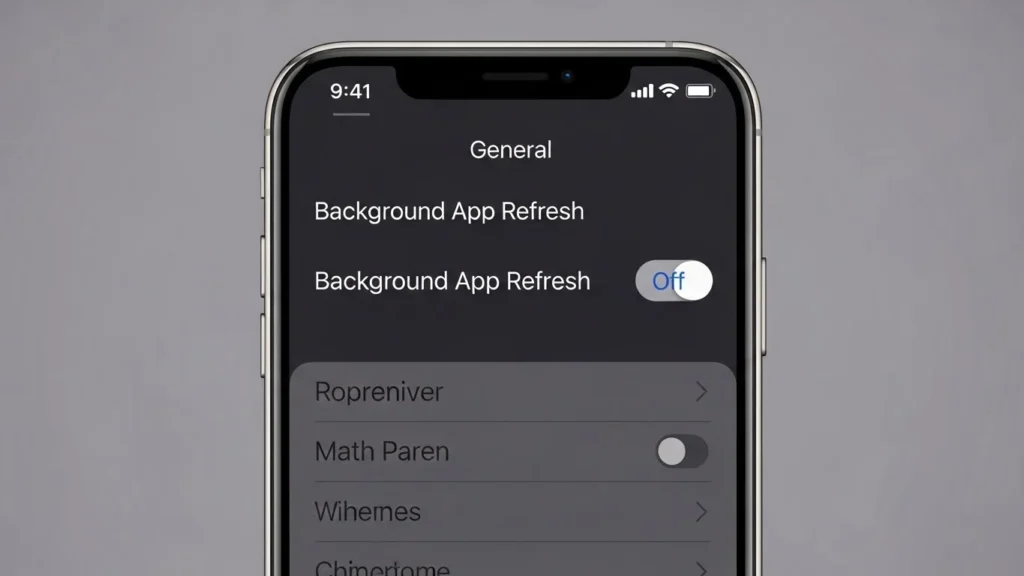
Start by adjusting your screen brightness. Lowering brightness or enabling auto-brightness can save battery life. Disable background app refresh for apps that don’t need it. Go to Settings > General > Background App Refresh and select Off or Wi-Fi only. Manage notifications by limiting them to essential apps. Navigate to Settings > Notifications and customize your preferences.
Managing Location Services
Location services can drain your battery quickly. To limit their use, go to Settings > Privacy & Security > Location Services. Here, you can choose to turn off location services entirely or adjust settings for individual apps. Select “While Using the App” for apps that don’t need constant access. This helps optimize iPhone battery and reduces unnecessary drain.
Updating iOS and Apps
Keeping your iPhone updated is crucial for battery management. Software updates often include performance improvements and bug fixes that can enhance battery life. To check for updates, go to Settings > General > Software Update. For apps, open the App Store, tap your profile icon, and scroll to see pending updates. Regular updates can help fix battery drain solutions.
Battery Health Management
Monitoring your battery health is essential. To check battery health, go to Settings > Battery > Battery Health & Charging. If your maximum capacity is significantly degraded, consider replacing the battery. Enabling Optimized Battery Charging can also help extend battery lifespan. This feature learns your charging routine and reduces battery aging.
Advanced Tips for Battery Optimization
Optimizing your iPhone 15 battery can significantly enhance your device’s performance and longevity. Here are some advanced tips to help you fix battery drain on iPhone 15 and improve your overall battery life.
Using Low Power Mode
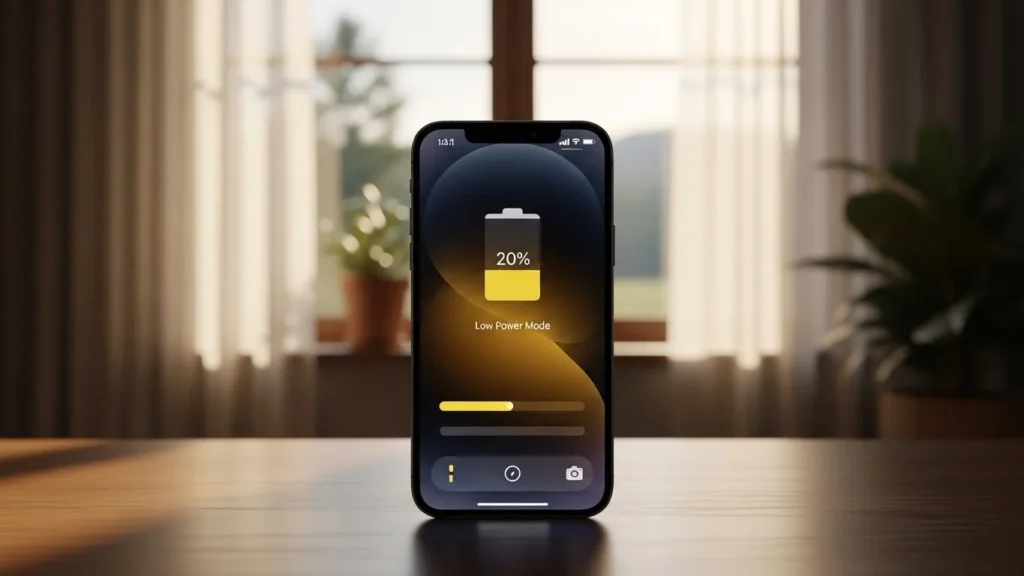
Low Power Mode is a powerful feature designed to extend your iPhone’s battery life. To enable it, go to Settings > Battery and toggle on Low Power Mode. This feature reduces background activity, such as downloads and mail fetch, and optimizes performance. You can also add a shortcut to your Control Center for quick access. Use it during long days out or when your battery is running low to maximize usage.
Resetting Settings
If you’re experiencing persistent iPhone 15 battery issues, resetting all settings can help. This won’t erase your data but will reset system settings like Wi-Fi passwords and wallpapers. To do this, navigate to Settings > General > Transfer or Reset iPhone > Reset > Reset All Settings. This can resolve software glitches affecting battery performance and restore optimal functionality.
Third-Party Apps for Battery Management
Several third-party apps can assist in monitoring and managing your iPhone’s battery usage. Apps like Battery Life, CoconutBattery, and AccuBattery provide insights into battery health and usage patterns. They help identify which apps are draining your battery and offer tips for optimization. Regularly check these apps to stay informed about your battery’s performance and make necessary adjustments.
When to Seek Professional Help

If you’re experiencing persistent iPhone 15 battery issues, it may be time to seek professional help. Here are some signs that indicate a hardware issue:
- Battery drains rapidly even with minimal use.
- Device overheats during charging or regular use.
- Unexpected shutdowns, even with a charged battery.
- Physical damage to the device, such as a swollen battery.
- Inability to charge the device despite using different cables and adapters.
If you notice any of these symptoms, contacting Apple Support or visiting an Apple Store is advisable. Here’s how:
- Visit the Apple Support website for troubleshooting tips.
- Use the Apple Support app to schedule a repair.
- Call Apple Support directly for immediate assistance.
- Locate your nearest Apple Store and book an appointment.
Getting professional help can ensure your iPhone 15 battery is properly diagnosed and repaired, optimizing your device’s performance.
Conclusion: Recap and Final Thoughts
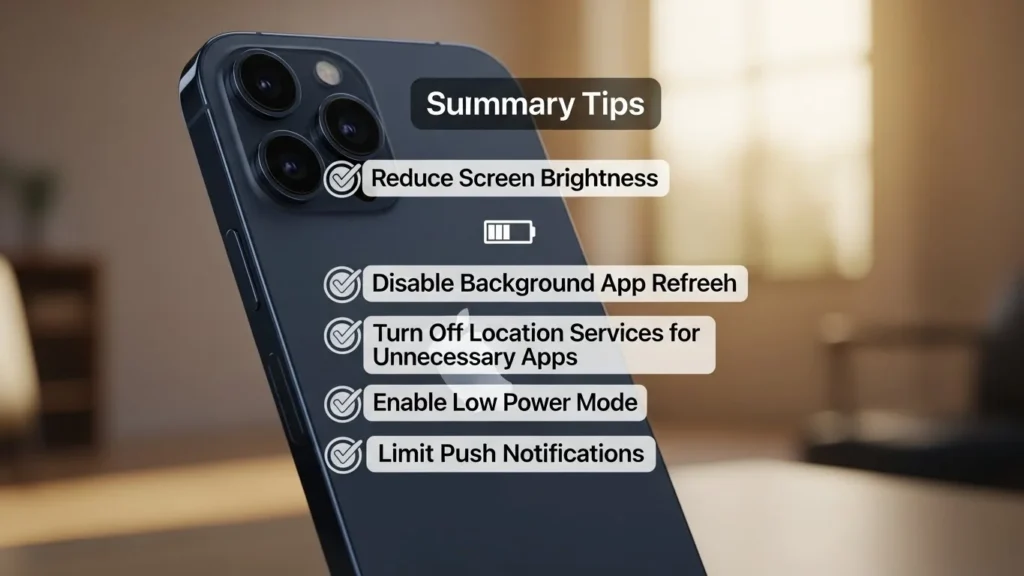
In this article, we explored various strategies to fix battery drain on iPhone 15. We discussed common iPhone 15 battery issues and provided actionable iPhone battery life tips. Key points included optimizing iPhone battery settings, managing background app activity, and utilizing low power mode effectively. By implementing these battery drain solutions, you can significantly improve battery performance and extend your device’s usability throughout the day. Remember, regular monitoring of your iPhone battery management settings is crucial for maintaining optimal battery health. We encourage you to take these tips to heart and enjoy a more efficient iPhone experience. Your device deserves the best care, and with these strategies, you can ensure it runs smoothly for longer.
FAQs
1. Q: Why is my iPhone 15 battery draining so fast?
A: Common reasons include background app activity, location services, and software bugs.
2. Q: How can I check my iPhone 15 battery health?
A: Go to Settings > Battery > Battery Health to view your battery’s maximum capacity and performance capability.
3. Q: Does using Low Power Mode really help?
A: Yes, Low Power Mode reduces background activity and optimizes performance to extend battery life.
4. Q: What should I do if my battery health is below 80%?
A: If your battery health is below 80%, consider getting a battery replacement from Apple or an authorized service provider.
5. Q: Can third-party apps help with battery management?
A: Yes, there are several third-party apps available that can help monitor battery usage and suggest optimizations.
Explore our site for more guides, tutorials, more tech and expert tips to boost your tech knowledge and stay ahead in the digital world!