


Resetting your iPhone can be a crucial step in troubleshooting iPhone issues. Whether you’re facing performance problems, software glitches, or simply want to start fresh, knowing how to reset your iPhone is essential. This guide will walk you through the reasons for resetting and the different types of resets available.
Understanding the Need to Reset Your iPhone
Resetting your iPhone can resolve various issues and improve performance. Here are some common reasons why you might need to reset your device:
- Persistent software glitches
- Slow performance or lagging
- Battery drain issues
- Network connectivity problems
- Preparing for a new user or selling the device
Each of these scenarios can benefit from a reset, making it a valuable tool in your iPhone troubleshooting arsenal.
Common Reasons for Resetting Your iPhone
Many users encounter specific issues that prompt them to consider resetting their iPhone. Here are some common reasons:
- Apps crashing frequently
- Unresponsive touchscreen
- Inability to connect to Wi-Fi or Bluetooth
- Software updates failing to install
- Restoring factory settings for resale
Understanding these triggers can help you decide when a reset is necessary.
Types of Resets: Soft Reset vs. Hard Reset
There are two primary types of resets you can perform on your iPhone: soft reset and hard reset. Each serves a different purpose:
- Soft Reset: This is a simple restart of your device. It can resolve minor issues without deleting any data. To perform a soft reset, press and hold the power button until the slider appears, then slide to power off.
- Hard Reset: This method forces your iPhone to restart and can help with more serious issues. The process varies by model, but generally involves pressing and quickly releasing the volume up button, then the volume down button, followed by pressing and holding the side button until the Apple logo appears.
Choosing the right reset method can significantly impact your troubleshooting efforts.
How to Perform a Soft Reset on Your iPhone
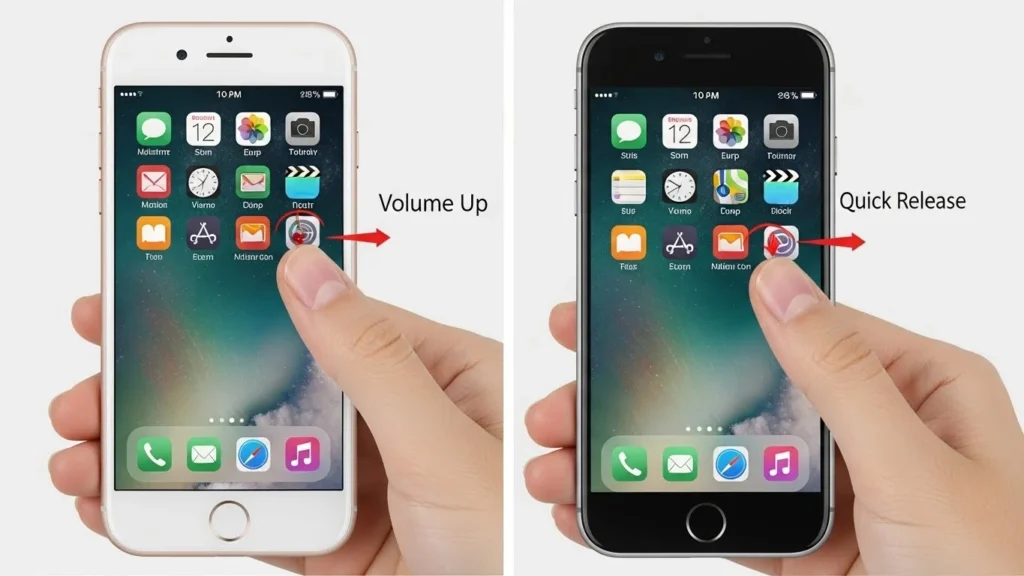
A soft reset is a simple yet effective way to troubleshoot iPhone issues. It can help resolve minor glitches without erasing any data. This process is often the first step in iPhone troubleshooting. Here’s how to perform a soft reset on your device.
Step-by-Step Guide for Soft Reset
1. Press and hold the Power button and the Volume Down button simultaneously.
2. Keep holding both buttons until you see the Apple logo appear on the screen.
3. Release the buttons and wait for your iPhone to restart.
Benefits of Soft Resetting Your iPhone
A soft reset can resolve many common iPhone issues, such as app crashes and slow performance. It refreshes the device’s memory without deleting any personal data. This quick fix is often all you need to restore your iPhone’s functionality.
How to Perform a Hard Reset on Your iPhone
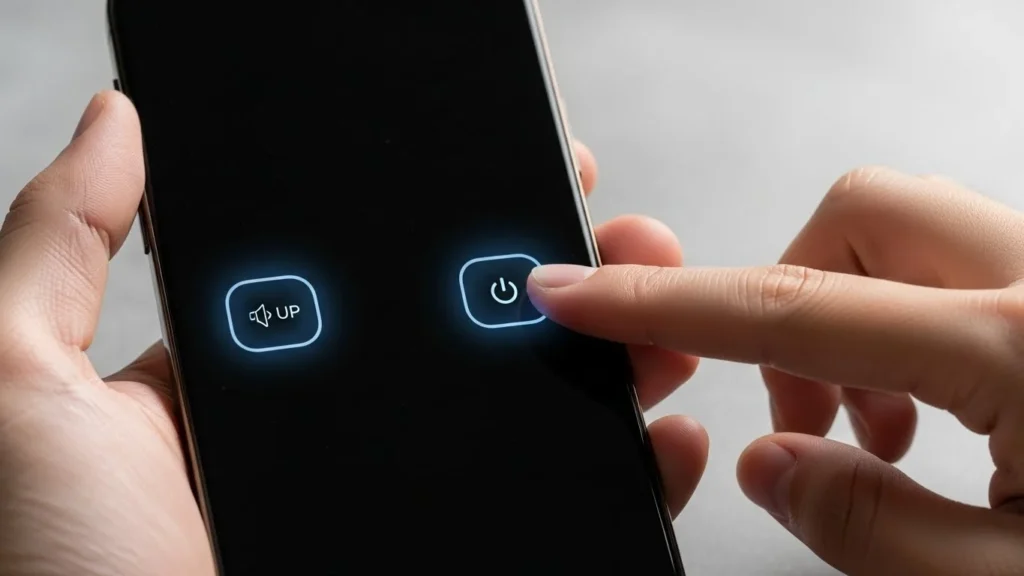
A hard reset can be a lifesaver when your iPhone is unresponsive or experiencing significant issues. This process forces your device to restart, often resolving minor glitches and performance problems. Here’s how to do it effectively.
Step-by-Step Guide for Hard Reset
1. Quickly press and release the Volume Up button.
2. Quickly press and release the Volume Down button.
3. Press and hold the Side button until the Apple logo appears.
4. Release the Side button and wait for your iPhone to restart.
5. Your device should now be reset and functioning normally.
When to Use a Hard Reset
Use a hard reset when your iPhone is frozen, unresponsive, or experiencing severe performance issues. It’s a quick troubleshooting step that can resolve many common iPhone issues without losing data. If problems persist, consider further troubleshooting or a factory reset.
Resetting Your iPhone to Factory Settings
Resetting your iPhone to factory settings can resolve various iPhone issues, from performance lags to software glitches. This process erases all data and settings, returning your device to its original state. Before diving into the reset, it’s essential to prepare adequately to avoid losing important information.
Preparing for a Factory Reset
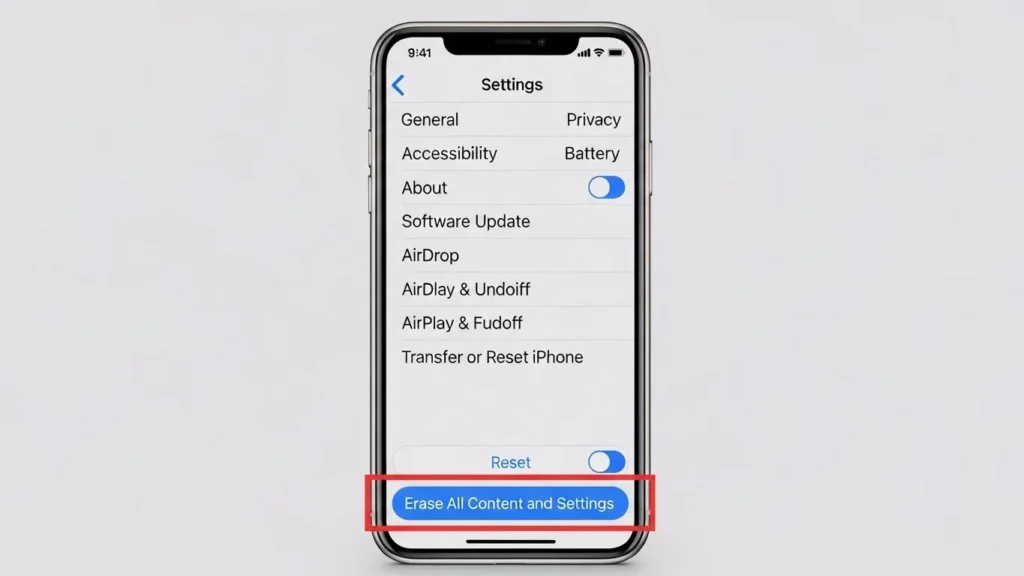
1. Backup Your Data: Use iCloud or iTunes to back up your contacts, photos, and apps. This ensures you can restore your data later. 2. Sign Out of iCloud: Go to Settings > [your name] > Sign Out. This prevents activation lock issues. 3. Charge Your iPhone: Ensure your device has at least 50% battery or keep it plugged in during the reset process. 4. Note Your Settings: Take screenshots of your settings for easy restoration after the reset.
Step-by-Step Guide for Factory Reset
1. Open Settings: Tap on the Settings app on your iPhone. 2. Go to General: Scroll down and select General. 3. Select Transfer or Reset iPhone: Tap on this option at the bottom. 4. Choose Erase All Content and Settings: Confirm your choice. 5. Enter Passcode: If prompted, enter your device passcode. 6. Confirm Erase: Tap on Erase iPhone to initiate the factory reset. Your iPhone will restart and begin the reset process.
What Happens After a Factory Reset?
After a factory reset, your iPhone will be like new. All data, apps, and settings will be erased. You’ll need to set up your device as if it were fresh out of the box. You can restore your data from the backup you created earlier. This process can help resolve persistent iPhone issues and improve performance.
Troubleshooting Common Issues After Resetting

Resetting your iPhone can resolve many issues, but sometimes new problems arise. Here are common issues you might face after an iPhone reset and how to troubleshoot them effectively.
iPhone Won’t Turn On After Reset
If your iPhone won’t turn on after a reset, try the following steps:
- Charge your iPhone for at least 15 minutes.
- Perform a soft reset by pressing and holding the power and volume buttons simultaneously.
- Check for any physical damage or water exposure.
- If it still doesn’t turn on, connect it to a computer and use iTunes to restore it.
iPhone Stuck on Apple Logo
Getting stuck on the Apple logo can be frustrating. Here’s how to fix it:
- Force restart your iPhone by pressing and holding the power and volume buttons until the Apple logo disappears.
- Try connecting your iPhone to iTunes and perform a restore.
- If the issue persists, consider putting your iPhone into recovery mode and restoring it from there.
- Seek professional help if none of these solutions work.
Frequently Asked Questions (FAQs)
How do I reset my iPhone without losing data?
You can perform a soft reset or use iCloud to back up your data before a factory reset.
What should I do if my iPhone is unresponsive?
Try a hard reset by pressing the appropriate button combination for your model.
Can I reset my iPhone remotely?
Yes, you can use Find My iPhone to erase your device remotely.
How long does a factory reset take?
A factory reset typically takes a few minutes, but it may vary based on the device.
Will resetting my iPhone fix software issues?
Yes, resetting can resolve many software-related problems, but it may not fix hardware issues.
Explore our site for more guides, tutorials, more tech and expert tips to boost your tech knowledge and stay ahead in the digital world!